
A slow printer can turn a simple photo job into a long and frustrating wait. The Epson L8050 is a popular six color ink tank photo printer, yet its speed can drop for several reasons. Most delays come from settings, drivers, connections, or paper choices rather than a broken part. This guide explains each common cause in plain language and shows practical steps to bring back normal speed without calling a technician.
Understanding Normal Print Speed
Before fixing anything, it helps to know what normal speed looks like for this model. A high quality photo print on the Epson L8050 takes much longer than a plain text page because the printer lays down fine ink layers using six colors. A borderless 4R photo can take around a minute or more, and larger sizes take even longer. Slow speed becomes a real problem only when everyday documents also crawl through the printer.
Common Reasons the Epson L8050 Prints Slowly
Several simple issues usually sit behind a sluggish printer. High resolution settings, outdated drivers, weak wireless signals, and oversized image files all add delay to each job. Dirty print heads and low ink levels can also force extra cleaning cycles that eat up time. Checking these causes one by one saves effort and avoids unnecessary repair costs. Start with the easiest items first and move toward the more technical ones.
Print Quality Settings That Slow Down the Epson L8050
The quality mode you select has the biggest effect on printing speed. Choosing the highest photo setting with high speed turned off makes the print head pass over the paper many times. For everyday documents, select standard quality and plain paper to cut the waiting time sharply. Keep the best quality mode for special photos that truly need it. This one change often doubles the speed you notice during daily printing.
Outdated or Corrupted Printer Drivers
Drivers act as the translator between your computer and the printer. When they are old or damaged, jobs can stall in the queue or process very slowly. Download the latest driver from the official Epson support page for your exact model and operating system. Remove the old driver completely before installing the new one. After a restart, test with a simple document to confirm that the speed has improved.
Wi-Fi and USB Connection Problems
A weak connection is one of the most hidden causes of delay. If your Epson L8050 connects through Wi-Fi, distance from the router and signal interference can slow the data transfer. Move the printer closer to the router, or switch to a USB cable to test the difference. Use a good quality cable of reasonable length for the best result. If the USB connection runs faster, your wireless network needs attention.
Large Files and Heavy Images
Big image files take time to process before printing even begins. A photo with a very high pixel count or complex layers forces your computer to work harder before sending data. Reduce the file size or resize the image to the exact print dimensions before you press print. Closing other heavy programs also frees memory for the job. This keeps the data flowing smoothly from your computer to the printer.
Print Head Cleaning and Nozzle Checks
Clogged nozzles make the printer repeat passes or run automatic cleaning, which slows every job. If you notice gaps, run a head cleaning cycle once or twice, but avoid doing it too often because it uses ink. Regular use of the Epson L8050 also prevents ink from drying inside the nozzles.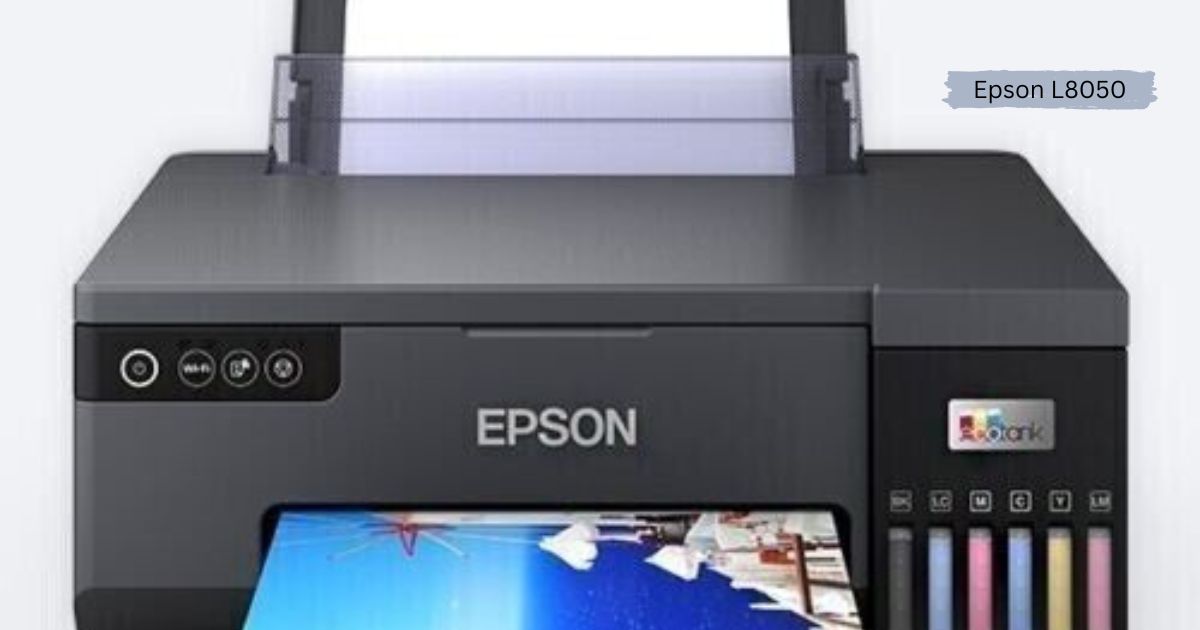
Ink Levels and Ink Tank Care
Low ink in any of the six tanks can disturb printing and trigger warning messages. Refill with genuine ink bottles when levels drop near the lower line, and fill each tank carefully with the correct color. Poor quality ink may clog the print head and affect speed over time. Keep the tank caps closed tightly and wipe away any spills right away. Proper care protects both print speed and print quality.
How Paper Choice Affects Epson L8050 Speed
If you choose glossy photo paper in the settings but load plain sheets, the printer slows down and may waste ink. Thick or specialty media also needs slower passes so the ink can dry properly. Always set the correct media type and size before printing. Clean, flat, and dry paper also feeds better and prevents unexpected delays.
Print Queue and Software Conflicts
A stuck job in the print queue can block every document that follows it. Open the printer queue on your computer, cancel all pending jobs, and restart the print spooler service if needed. Background apps and security software can also interfere with the printing process. Pause heavy downloads while you print to give the printer a clear path. These small steps clear hidden blockages quickly and safely.
Firmware Updates and Printer Restart
Firmware updates fix bugs and improve the way the printer handles incoming data. Check the Epson support site for updates for your Epson L8050 model and follow the official steps carefully. Turn the printer off, unplug it for about a minute, and start it again to clear temporary errors. A fresh restart often resolves unexplained slowness without any other change. Try this simple step before moving on to deeper fixes.
Simple Habits to Keep Your Epson L8050 Fast
Good habits keep printing speed steady over the long term. Print a small test page every week, keep the printer in a clean and cool room, and cover it when it is not in use. Use the correct quality mode for each job and update your software regularly. Avoid shutting the power off by pulling the plug, and always use the power button instead. These routines help the printer stay reliable for years.
Conclusion
The Epson L8050 can return to fast and steady printing once you find the real cause of the delay. Start with quality settings, drivers, and connection, then check the nozzles, ink, paper, and print queue. Regular care and timely updates keep performance strong. Apply these steps today and enjoy smooth, quick prints again.
FAQs
Why is my Epson L8050 printing so slowly?
Wrong quality settings, old drivers, weak Wi-Fi, or clogged nozzles are the most common causes of slow printing.
Does Wi-Fi make the printer slower than USB?
It can, because a weak signal slows data transfer, while a USB cable usually gives steadier speed.
How often should I clean the print head?
Clean it only when a nozzle check shows missing lines, because too much cleaning wastes ink.
Can a driver update fix slow printing?
Yes, installing the latest official driver often removes delays caused by outdated or damaged files.
